
Ten minutes is enough to see what makes Inkwell different from a word processor: the draft is structured, every moment you name can be restored, alternate versions live side by side, and AI proposes changes you review rather than pasting them over your work. Each step below has a longer article of its own.
Create a project
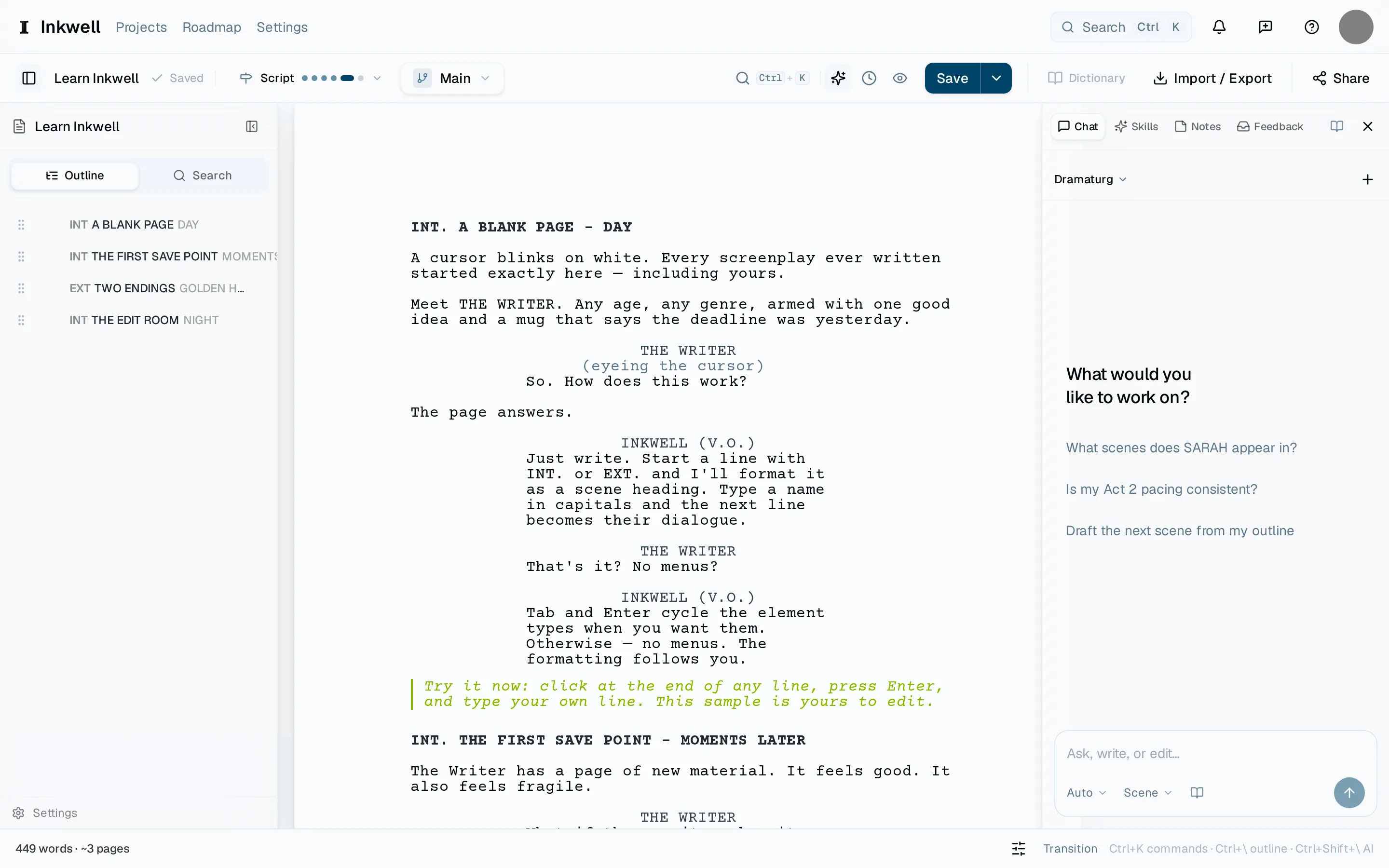
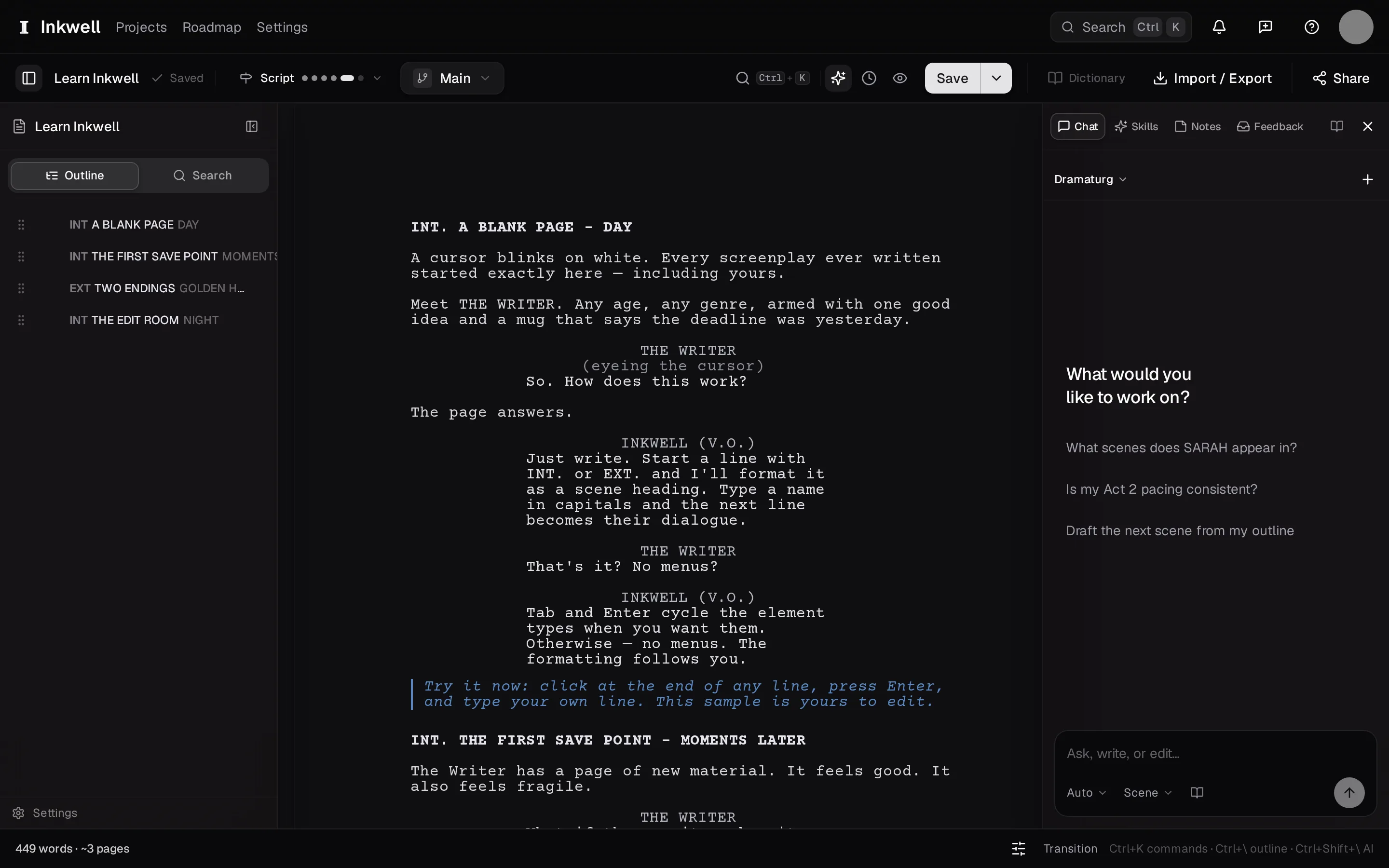
Open Plot and choose New project. Give it a title and pick a starter — a blank screenplay, or the Learn Inkwell template, which opens with a short script and notes that point at each feature. Full details: Create your first project.
Write one scene
Type a scene heading such as
INT. KITCHEN - NIGHTand press ↩. Press ⇥ to move between screenplay elements — action, character, dialogue — or jump straight to one with ⌘⌥3 and its neighbors. The formatting is automatic. See Write your first scene.Make a save point
Press ⌘⇧S, name the moment ("first pass at the kitchen scene"), and confirm. The save point appears in the History tab on the right. You can compare against it or restore it at any time. See Make a save point.
Try a draft line
From the History tab, create a draft line — a parallel version of the whole script. Rewrite the scene there without touching the original. Switch between the two whenever you like. See Try a draft line.
Ask for an AI pass
Open the Chat tab and type what you want — "tighten the dialogue in this scene". The Dramaturg has read the whole script; on Auto it answers a question here and puts an instruction's changes on your page. For a named pass, the Skills tab has Dialogue Pass and the rest. See Your first AI pass.
Read and decide on the changes
Each proposed change shows in the page as markup. Accept the ones that earn their place, reject the rest, and make a save point when you are done. See Read the changes.