
The editor formats as you type. You never set indents or capitalization by hand — you tell Plot which screenplay element a line is, and the page does the rest.
A scene on the page — heading, action, character cue, and dialogue, each formatted by its element type.
Type a scene heading
On the empty first line, type
INT. KITCHEN - NIGHTand press ↩. Plot recognizes the heading and formats it; the next line is action.Move between elements with Tab
Press ⇥ on an empty line to cycle to the next element type — action, character, dialogue, parenthetical, transition. To jump straight to one, use the number shortcuts: ⌘⌥1 for a scene heading, ⌘⌥3 for a character cue, ⌘⌥4 for dialogue. The full set is in Elements and formatting.
Write a character and a line
Type a character name on a character line and press ↩ — the next line is dialogue. Press ↩ again after the line and you are back on a character cue, ready for the reply.
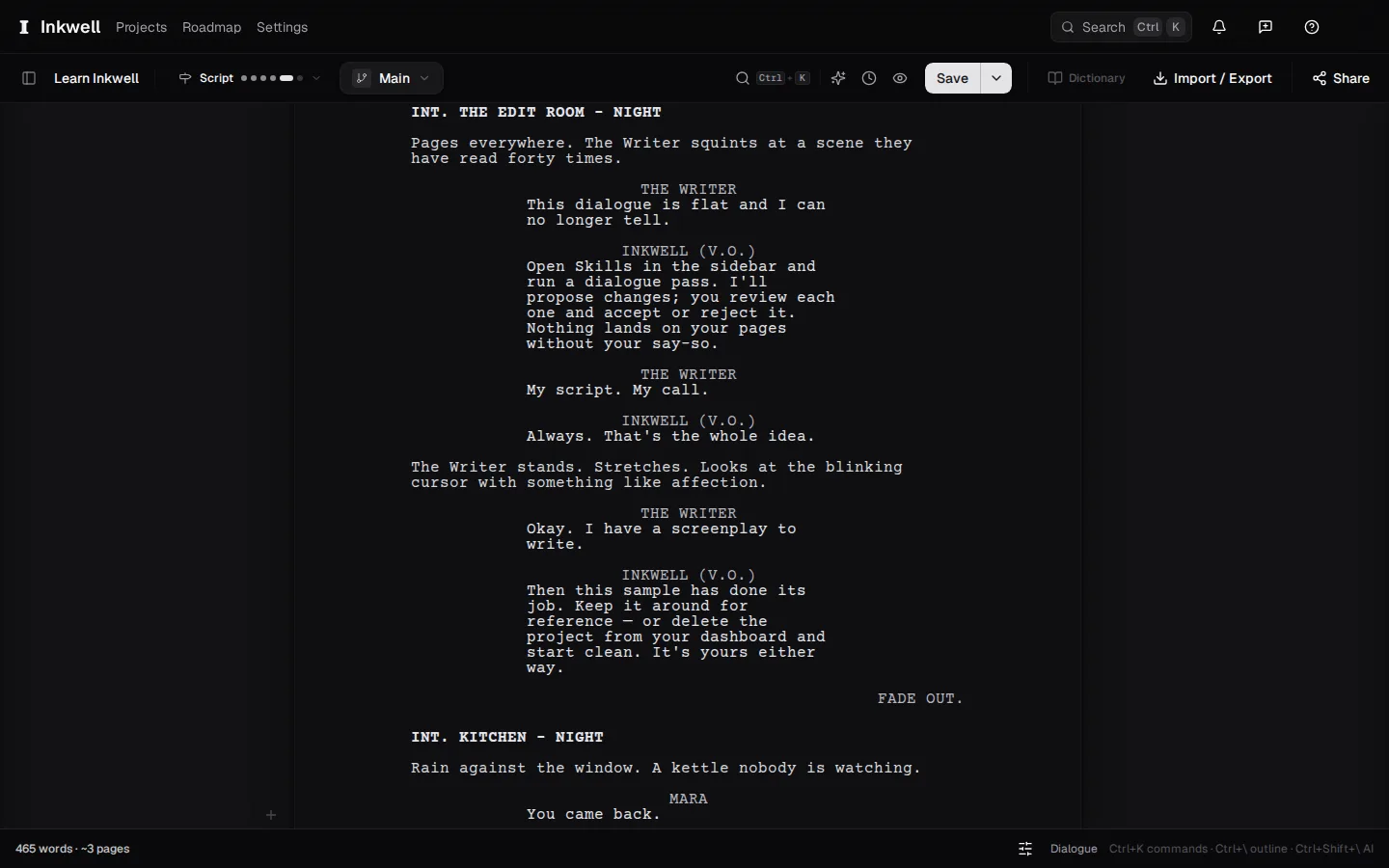
A scene typed from a blank line: the heading, an action line, Tab to a character cue, and the reply already formatted as dialogue. Accept or ignore ghost text
Pause mid-line and a faint continuation may appear. Press → to accept it, ⌘→ to take one word at a time, or keep typing to ignore it. Ghost text explains where it comes from.
Reach anything from the palette
Press ⌘K to open the command palette. Type what you want — "save point", "draft line", "focus mode", a skill's name — and press ↩. Everything in this help center that has a command is reachable from there.