
A project holds one screenplay and everything that grows around it: its save points, its draft lines, its notes, and the results of every skill you run. Your projects page lists them all, most recently edited first.
The writing can start before it is a screenplay. Import a Word treatment, or work with prose and scenes together as you develop an idea into a script.
The projects page — each card is one screenplay, with its last edit and a New project card at the end.
Open the projects page
Sign in and you land on Your projects. If you already have projects, press / to jump to the search box and find one by title.
Choose New project
Select New project. A dialog asks how you want to begin and what to call it.
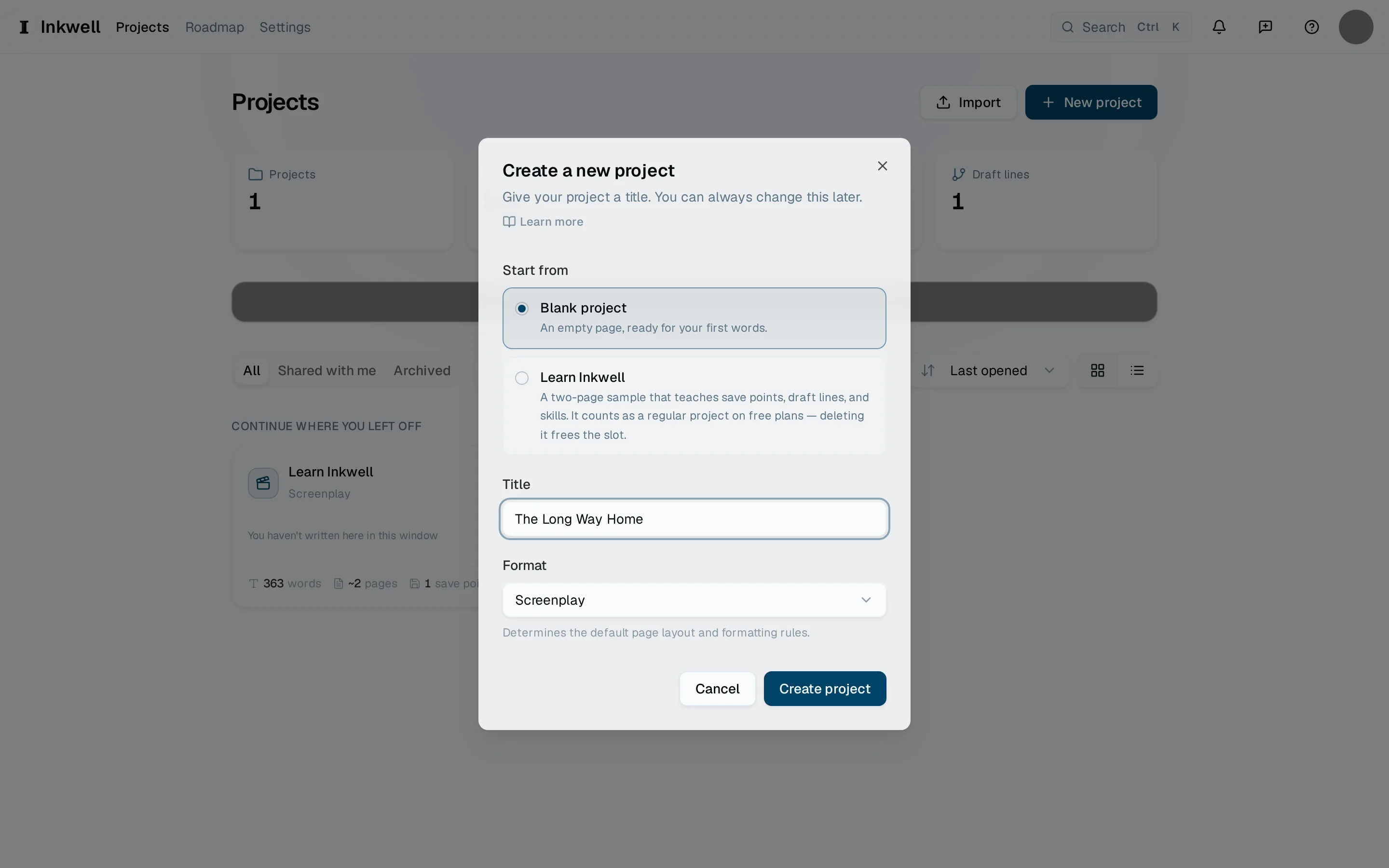
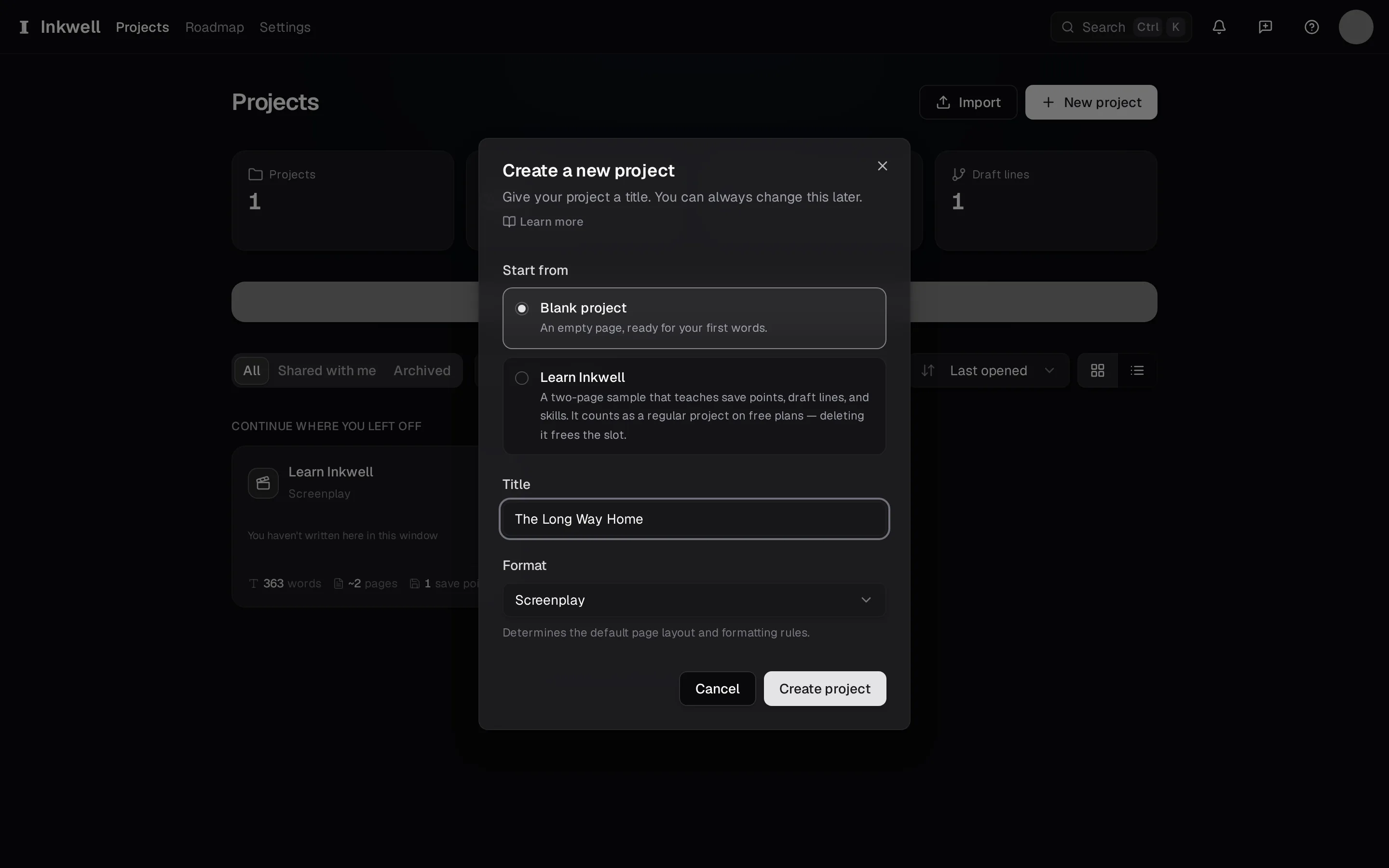
The new-project dialog: choose where to start (1), give the project a title (2), pick its format (3), and create it (4). Pick a starting point
Choose Blank project to start from an empty page, Learn Inkwell for a short script that walks you through the features, or a starter: Short Film for a contained short with a complete scene sequence, or Stage Play for a playable one-act. A starter is an ordinary project you can rewrite or delete, and it sets its own format. For a blank project, the Format menu below the title sets what you are writing — a screenplay unless you change it. To start from a Final Draft (
.fdx) or Fountain file instead, use Import beside New project on the projects page — see Import a Final Draft file.Create and start writing
Confirm. The editor opens on your new project with the first scene ready to type into. Your project title sits in the header; select it later to rename.