
An AI pass reads part of your script and proposes changes; you accept or reject each one on the page. The quickest one starts in the Chat tab, where the Dramaturg — an assistant that has read your whole script — takes a plain instruction.
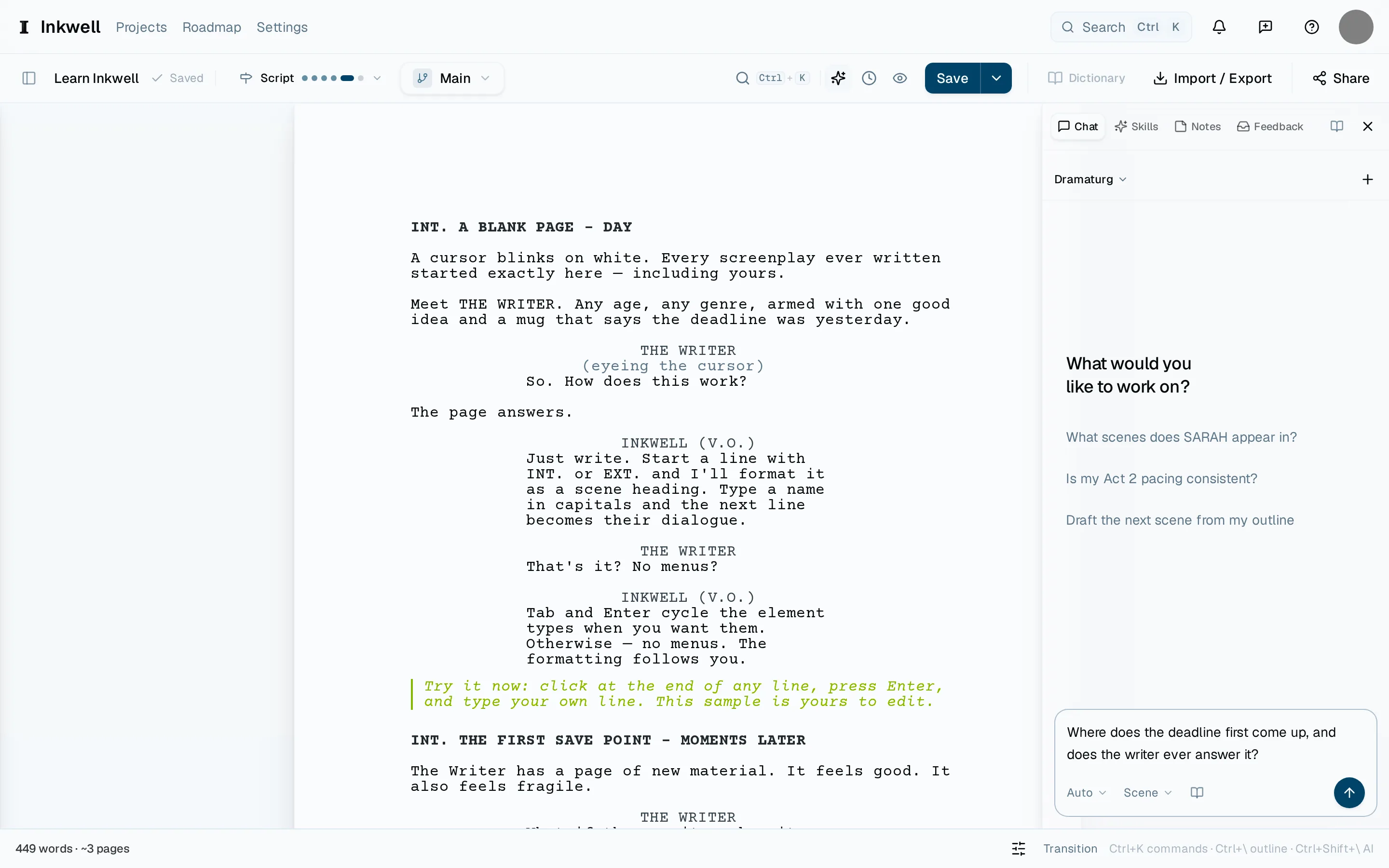
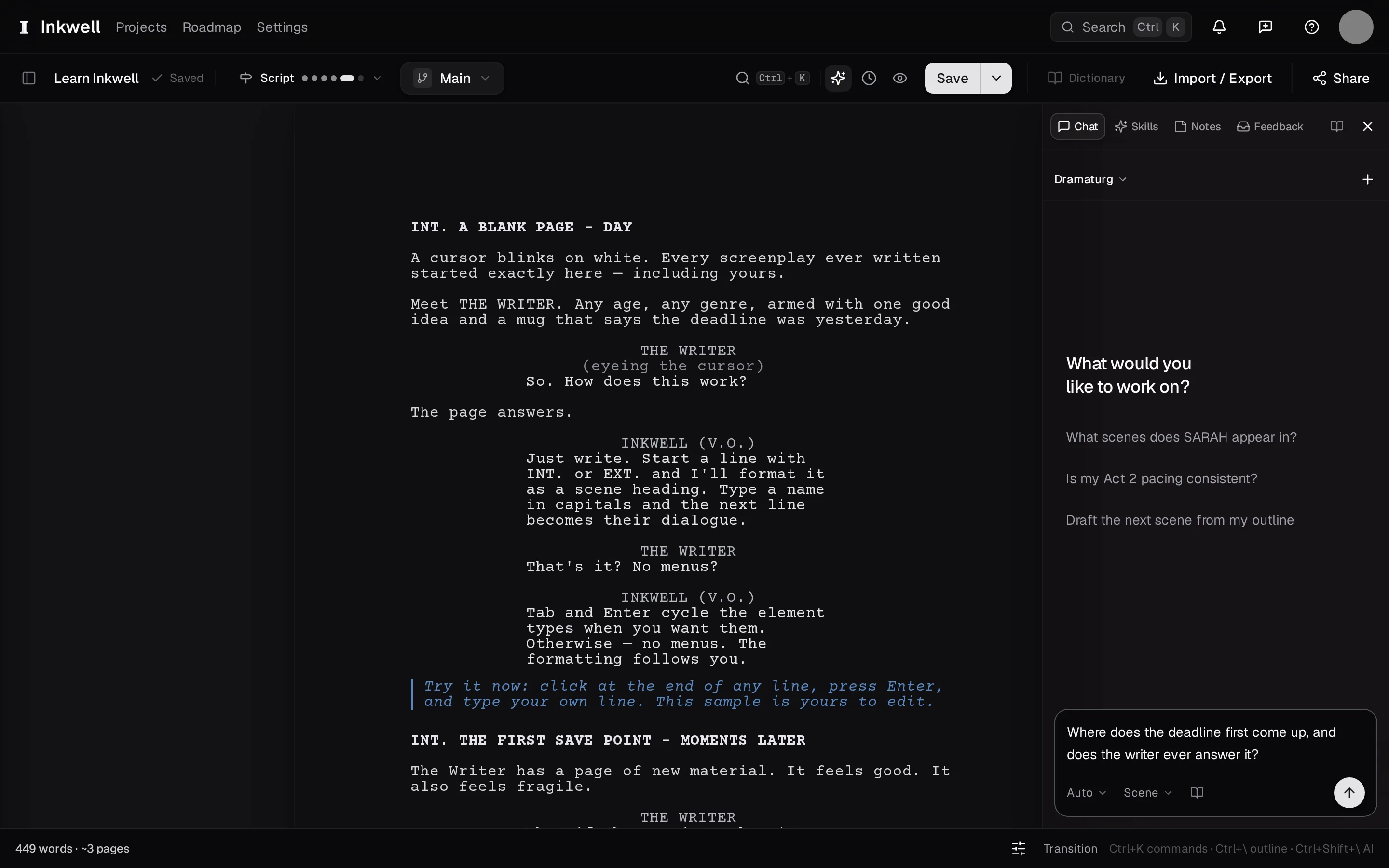
Open the Chat tab
In the right sidebar, choose Chat. The message box starts on Auto.
Say what you want
Type it the way you would say it — "Tighten the dialogue in this scene" — and press ↩. On Auto, the Dramaturg decides for itself: a question gets an answer, an instruction gets changes on your page. Type @ to point it at a particular scene or character.
Read the changes
The changes arrive on the page as markup — removed text struck through, added text underlined — each with its own Accept and Reject. The next article walks through that: Read the changes.
Or run a named pass from the Skills tab
For a job with a name — a dialogue pass, a continuity check, coverage — choose Skills in the row of tabs at the top of the sidebar, pick the skill, choose how much it should read (start with one scene), and press Run. Its changes arrive the same way. From the page, ⌘/ opens the same library by name.
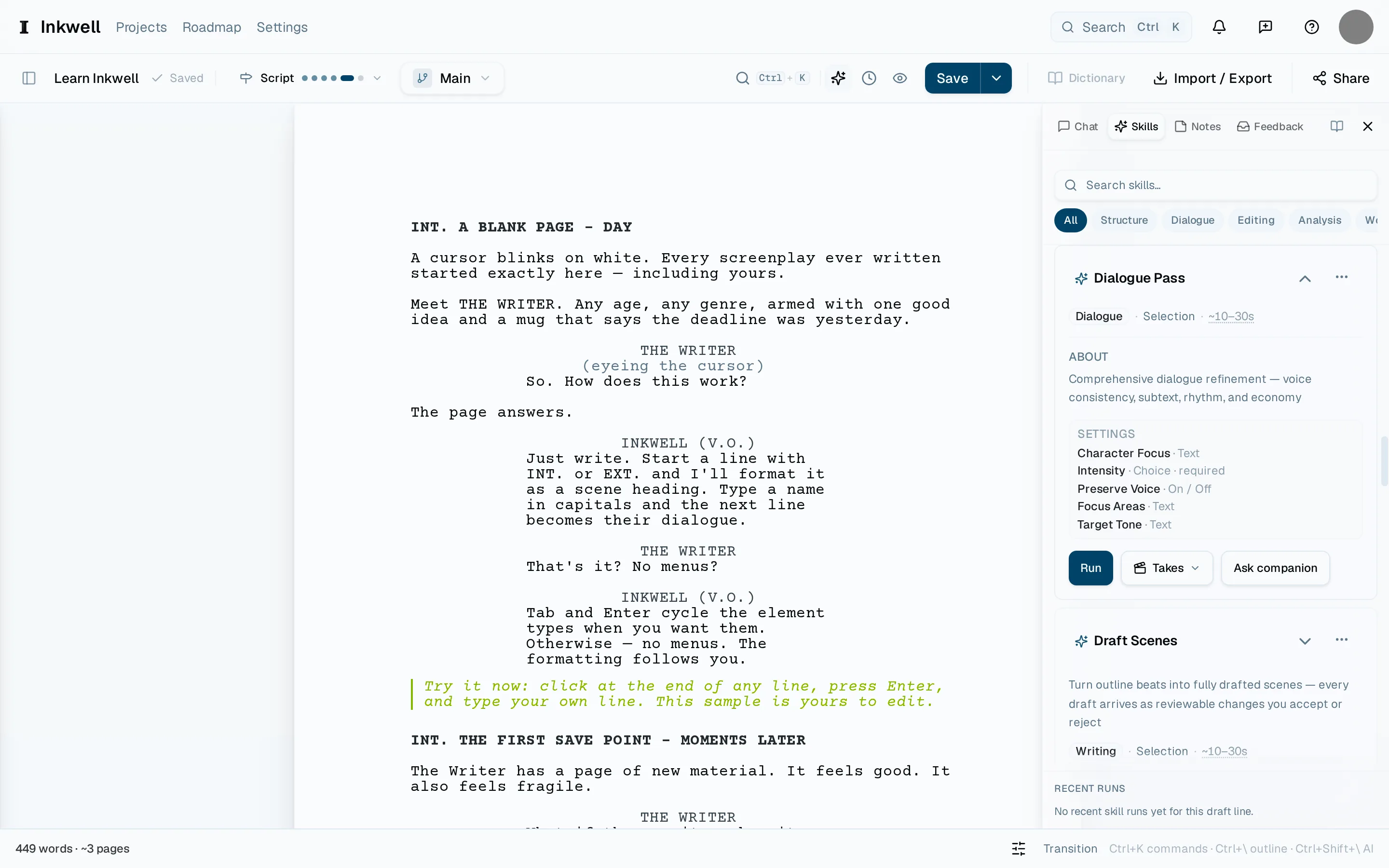
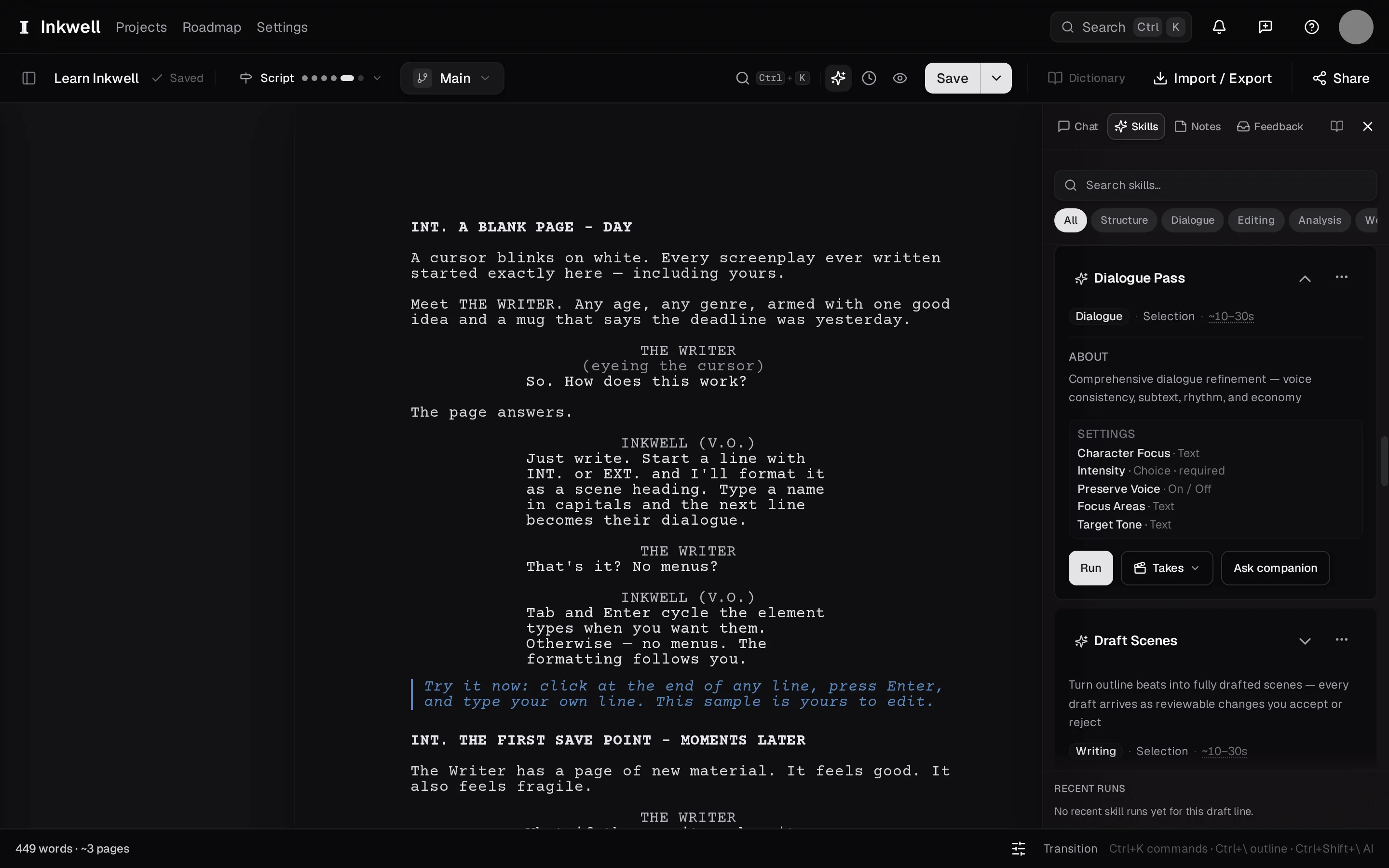
The companion sidebar on Skills — the tab (1) at the top is how you get there. Each card says what the pass reads and what it returns — here Dialogue Pass, expanded (2) — and Run (3) starts it on the scope you choose. To see what a named pass does to a real scene, and how that differs from asking in chat, read What a dialogue pass actually changes.
A pass in progress — the scene it is reading is highlighted, and it can be canceled from its card.