
Give each scene a letter for the story it serves, and Plot shows how your stories weave through the script: how much of the page each one gets, and where one goes quiet for too long.
Tag a scene
Click in a scene heading. A dashed Story slot appears in the right margin beside it; choose it to open the plot-line picker. Press a letter, or choose a row: A for your main story, B and C for the others. Any letter from A to Z works, and a scene can carry more than one.
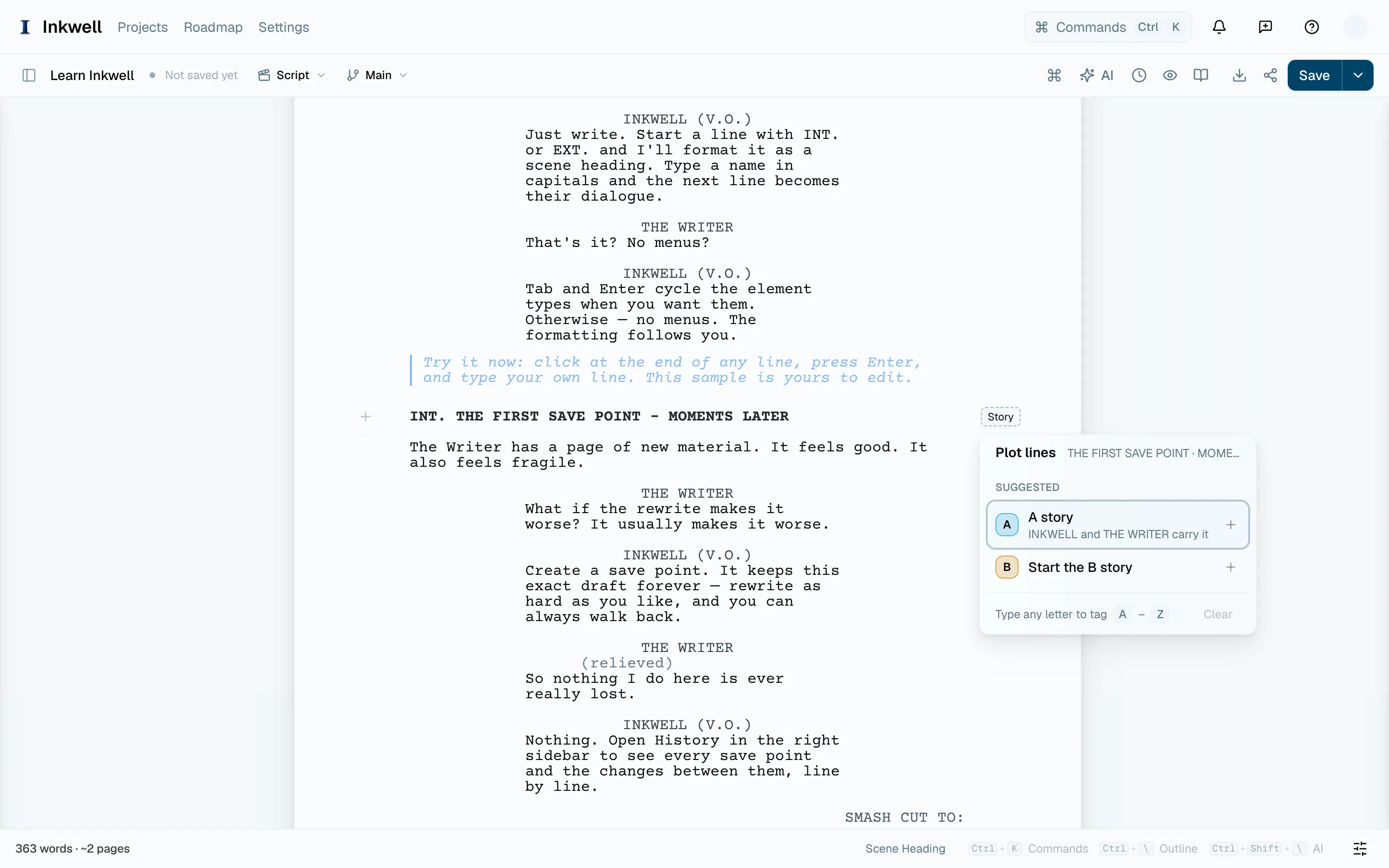
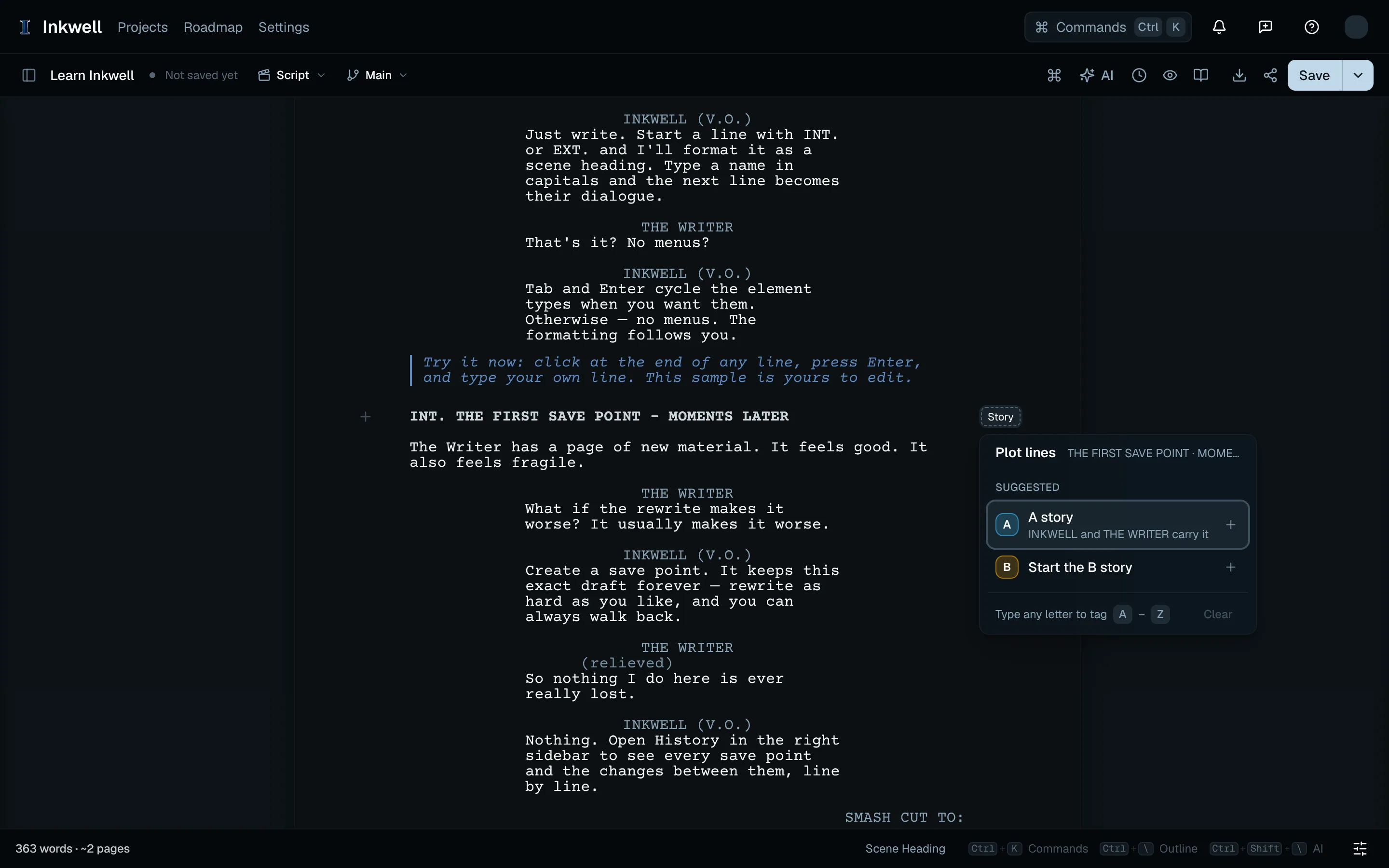
The Story slot beside an untagged scene heading (1) opens the picker (2): the stories already in use, a suggestion from the scene’s cast, and the next free letter. Check the suggestion
When the characters in a scene already appear in a tagged story, the picker suggests that story at the top. Press its letter to accept it, or ignore it and pick another. Press the same letter again to take a scene out of a story, or choose Clear to remove every tag. Press ⎋ to return to the page.
See how the stories weave
Open the Stories tab in the left sidebar, or choose Show plot lines from the command menu. A strip at the top shows the whole script, one segment per scene, colored by its stories. Below it, each story lists its scenes, its share of the pages, and its longest quiet stretch, so you can see at a glance when the B story drops out for twenty pages.
Read one story on its own
Select a story in the tab. If your caret is outside it, the page moves to its first scene. Every scene outside it dims, and a bar at the foot of the page shows which scene of the story you are on. Use its arrows to step to the story’s previous or next scene, and press ⎋ or choose Show every scene to bring the whole script back.
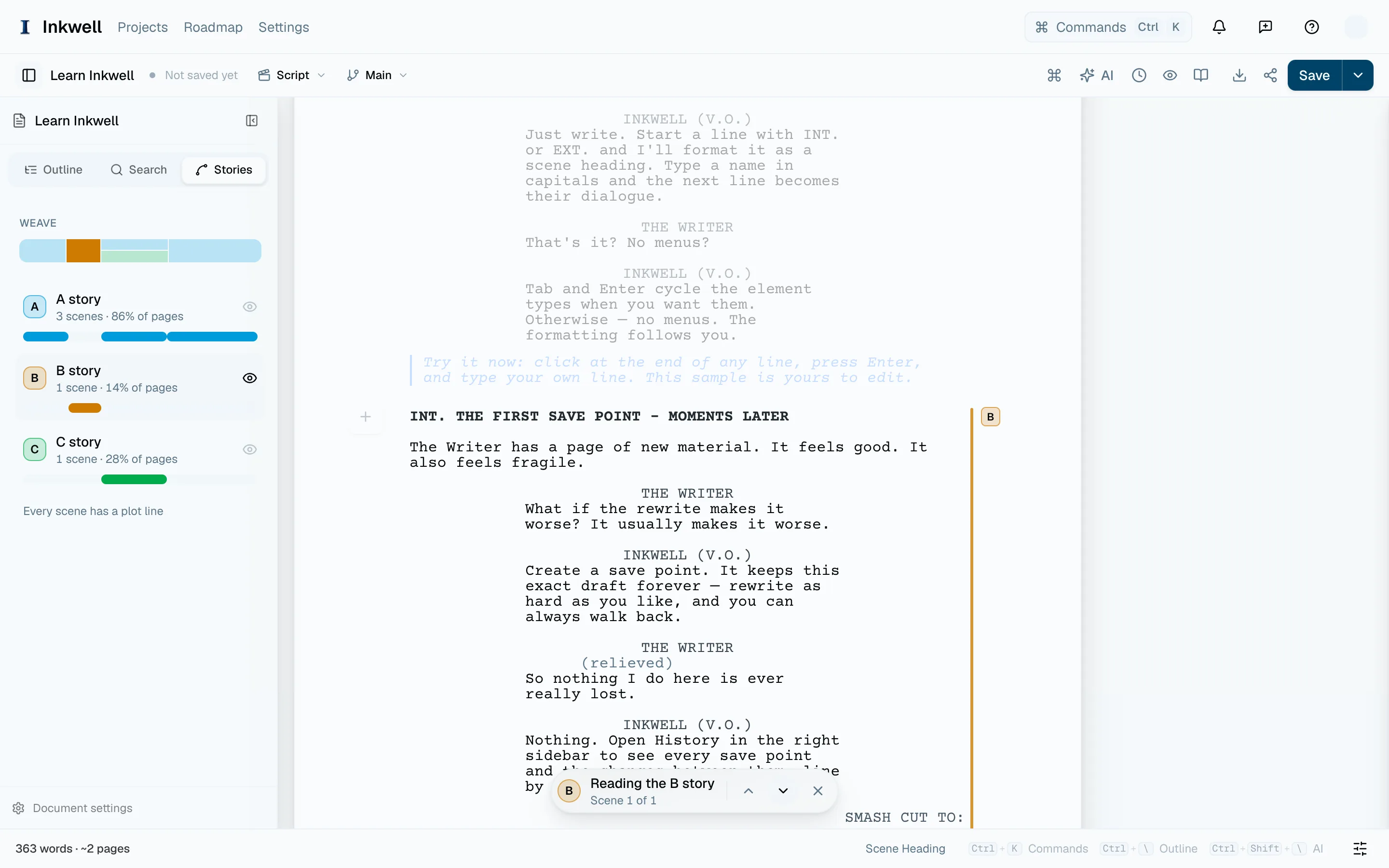
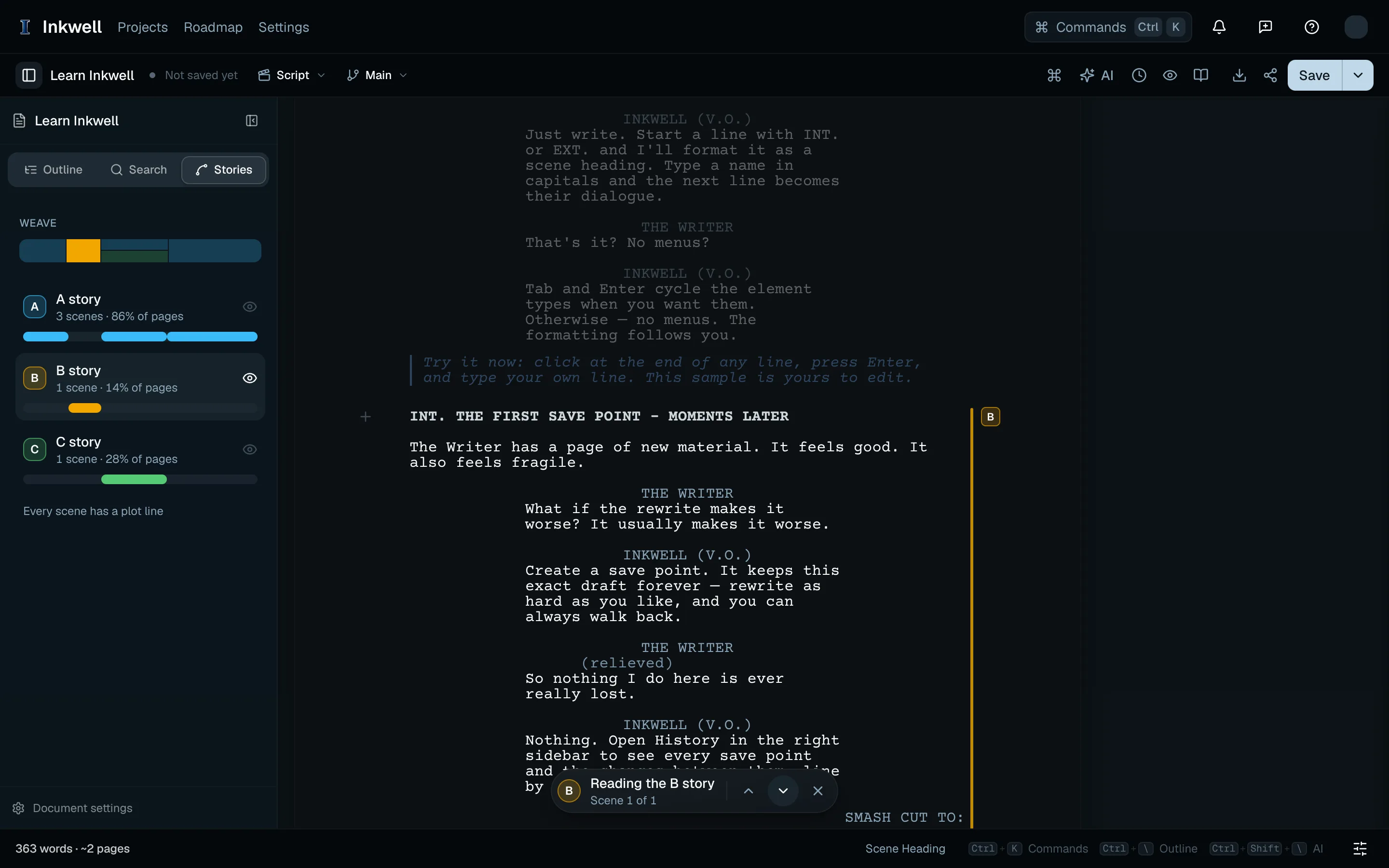
The Stories tab (1) with the B story selected; the bar at the foot of the page (2) steps through its scenes while the others dim.
The tab only shows once the script has a scene heading. With no tags yet, it lists these same steps and offers Tag this scene for the scene your caret is in. The Untagged row works the same way as a story, so you can find the scenes that still need one.
What a tag changesLink to this section
Tags are part of the script, so they are saved with it, appear in save points and draft lines, and undo like any other edit. They never print: PDF and Final Draft exports leave them out, and a Fountain export keeps them as a [[Plot lines: A, C]] note under the heading only when notes are included. People reading a share link do not see them.
The letters also appear beside each scene in the outline, and the AI reads them, so you can ask how the B story is paced or which scenes the C story is missing.