
Sticky notes are for you: "check the timeline here", "she would not say this yet", "cut?". They pin to a scene, travel with it when scenes move, and never appear in an export.
Open the Notes tab
In the right sidebar, choose Notes. Before you have any, the tab explains itself and offers to add the first one.
Add a note to the current scene
Select Add note. The composer opens for the scene your cursor is in; type the thought and choose Save.
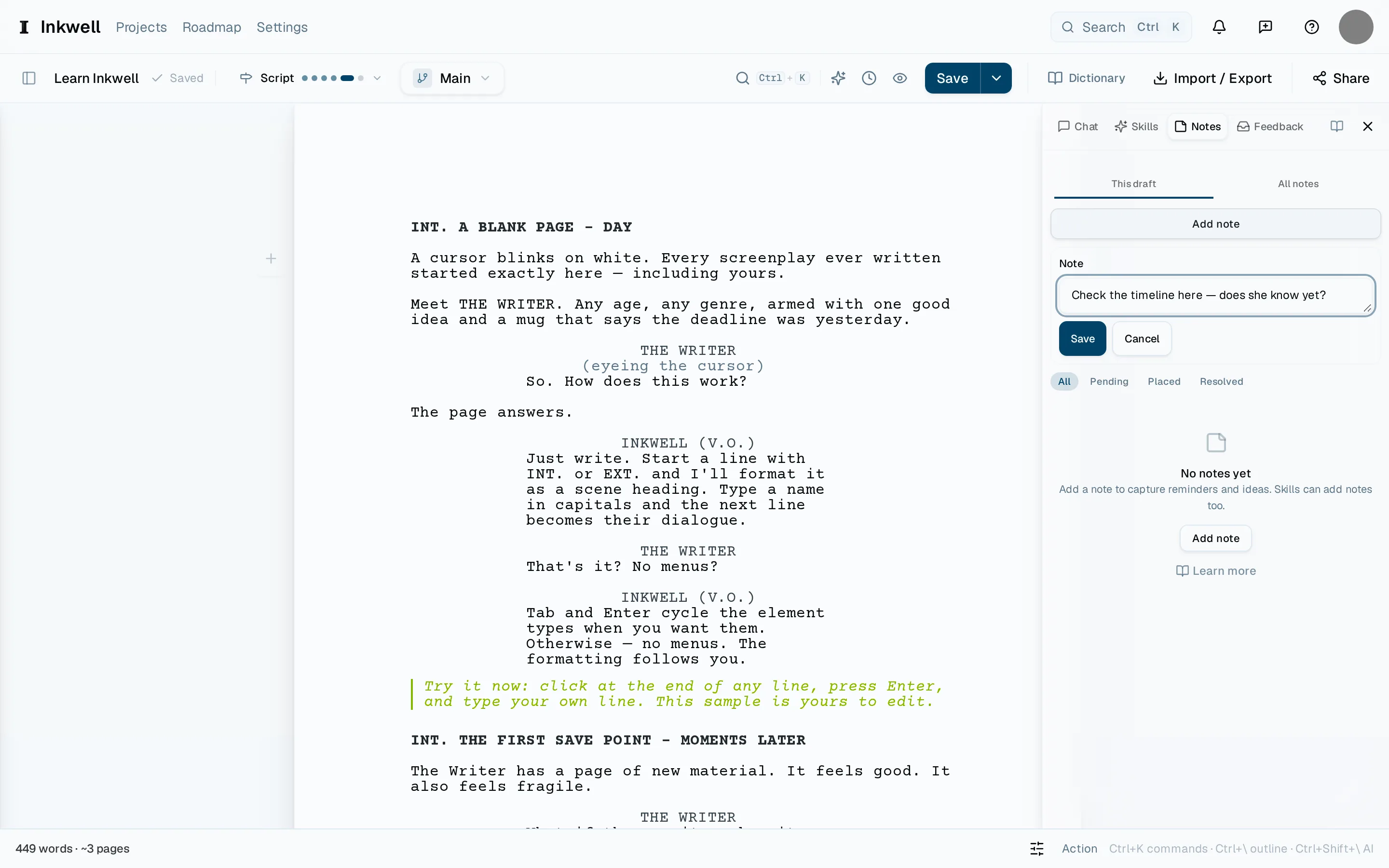
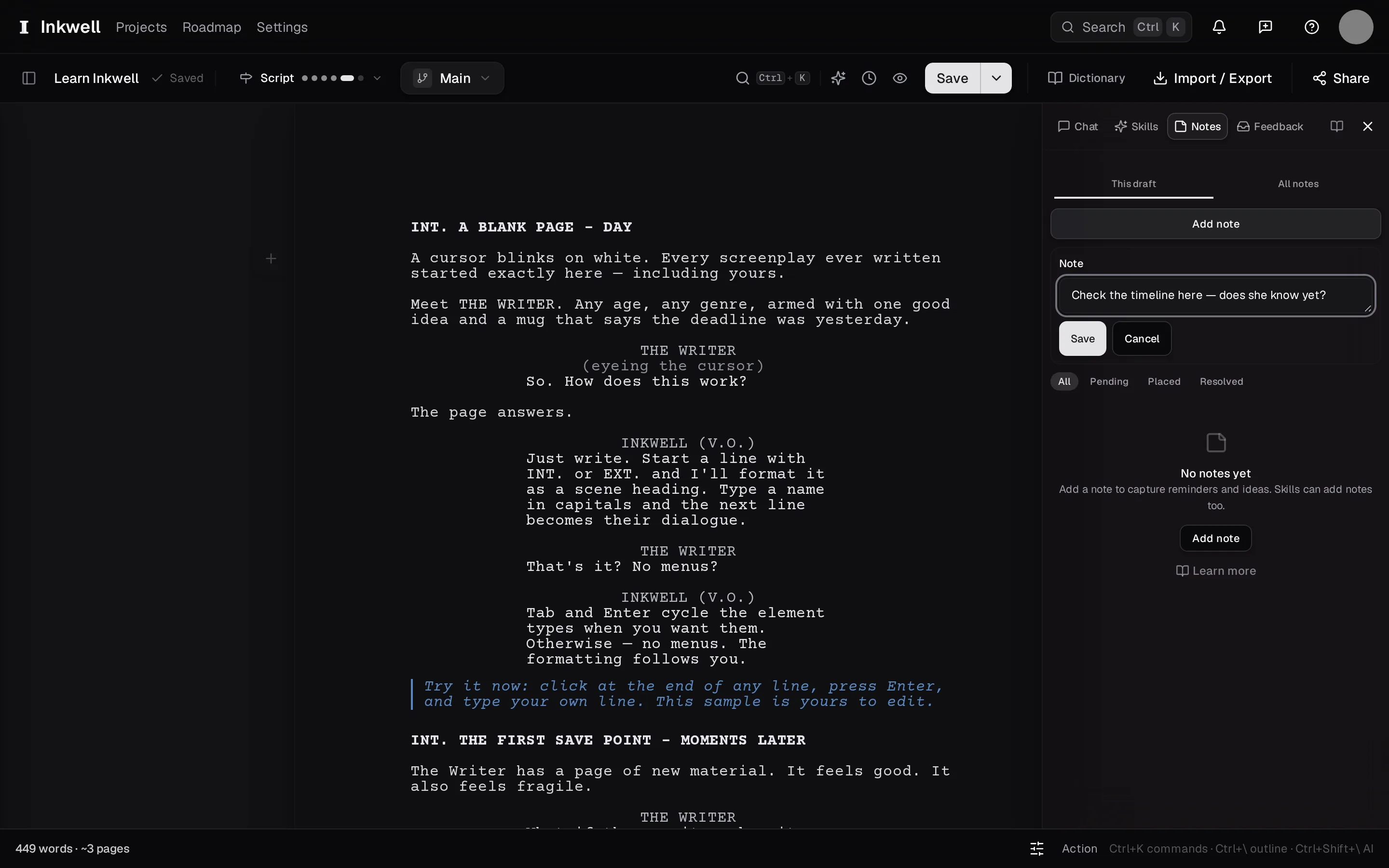
The Notes tab: Add note (1) opens the composer (2) for the scene under the cursor, and the filter (3) shows every note, or only the pending, placed, or resolved ones. Filter by what still needs you
The filter at the top of the tab shows all notes, or only the ones still pending, the ones placed on a line, or the resolved ones — so a long list narrows to what is left to do.
Jump from a note to its scene
Select a note's scene name to scroll the page there. Notes also show as small markers in the outline, so you can see which scenes carry thoughts before opening them.
Resolve it when you are done
Mark a note Resolved and it drops out of the list into the resolved view, where it stays readable. Delete it only when it was never worth keeping.