
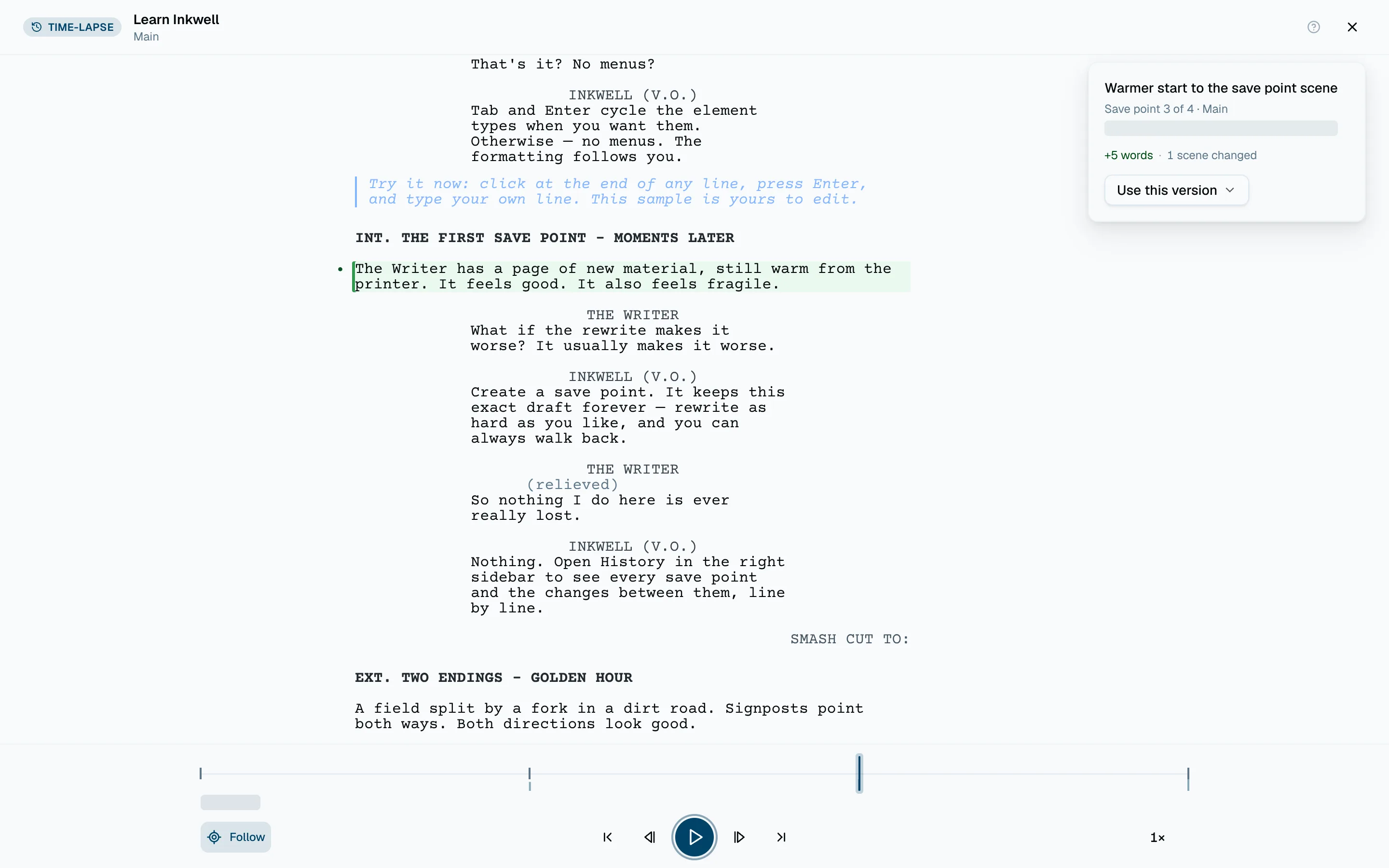
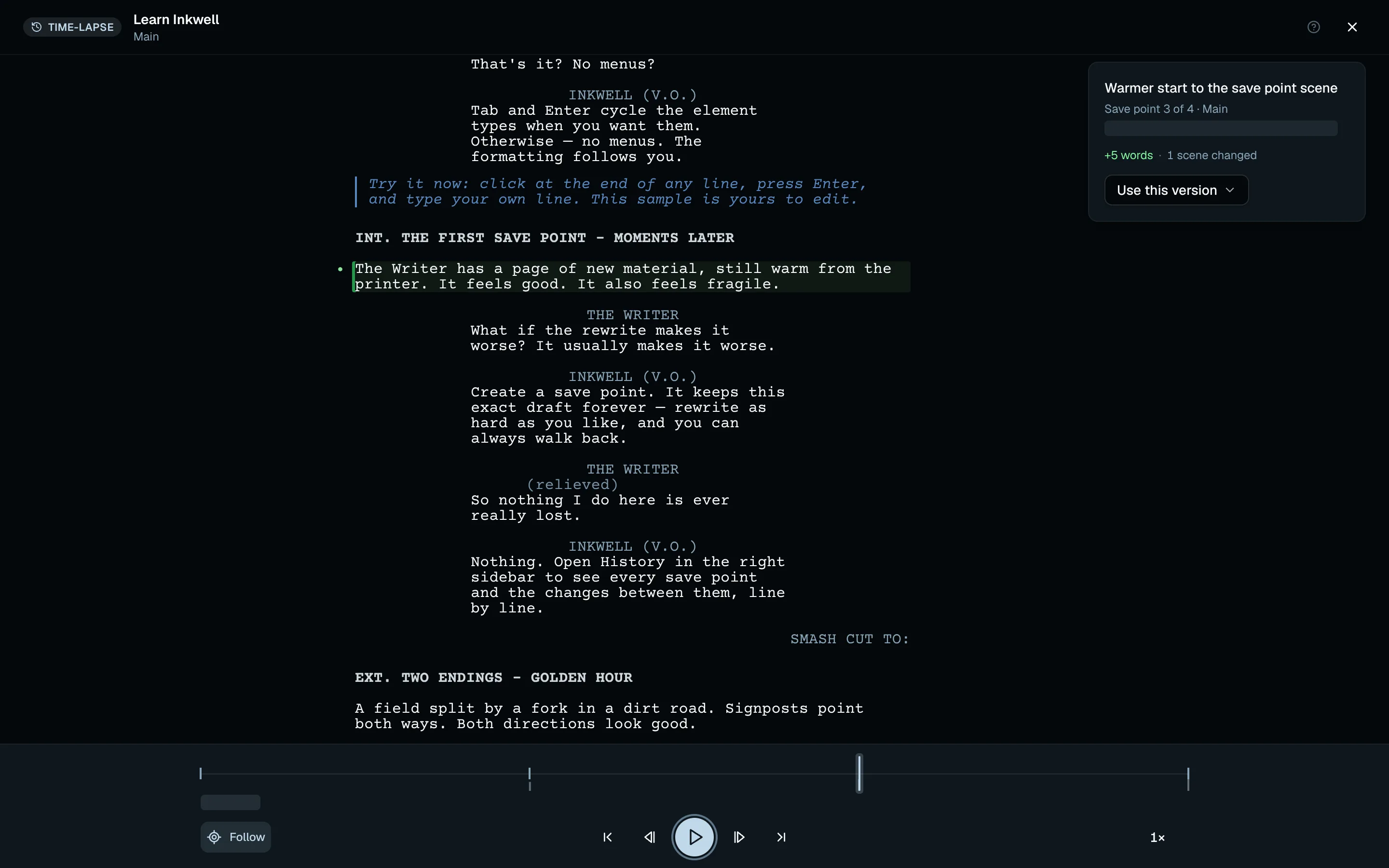
Time-lapse plays a draft line's history like a film. Every save point is a frame: the script exactly as it was then, with the lines that save point added or changed marked on the page. Press play and the draft writes itself again, scene by scene, from the title page to the version on screen now.
Open it from the History tab with Play history, or search the command palette for "Play history". It plays the draft line you are on, and it needs at least two save points.
Reading the trackLink to this section
Each mark on the track is a save point. The ones you named stand taller, or show as dots when the track is crowded. Milestones are dots in their own color, with their names above the track when there is room. Dates run underneath.
The gaps tell you how the work went. Save points made in one sitting sit close together; a break between sessions leaves a space, and a longer break leaves a wider one. When the save point on screen comes after a break of a day or more, the card says so under its time: "The next day", "3 weeks later", "2 months later".
The card also says what the save point changed: words added and removed, and how many scenes it touched.
Following the changesLink to this section
Most changes happen pages away from where you are reading. With Follow on, the page moves to each change as it plays, so you watch the writing rather than a page that sits still. It moves only when no change is already in view, and it goes to the largest one.
Turn Follow off to read at your own place. The top or bottom edge of the page then glows when a change is out of sight beyond it. The choice is remembered on this device.
Moving through itLink to this section
Drag the track, or use the controls under it:
| To | Press |
|---|---|
| Play or pause | ␣ |
| Play backward or forward, faster each press | J · L |
| Step one save point | ← · → |
| Jump to the previous or next named save point or milestone | ⇧← · ⇧→ |
| Go to the first or the latest save point | Home · End |
The speed button sets how fast it plays, from half speed to sixteen times.
Using a version you findLink to this section
Pause on any save point and choose Use this version:
- Restore this save point makes it the newest save point on the draft line. The version you had stays in history, so nothing is lost. See Save points.
- Start a draft line here branches from it, so you can take the script somewhere else from that point without touching the main line. See Draft lines.
- Compare with current draft shows the changes between it and today as markup. See Changes and markup.
- Copy text copies that version's script.