
A share link is for readers without an account. For people who work on the script with you, invite them: they get a role, the project appears in their own projects page, and their save points and comments carry their name.
Open the project's members
On the projects page, open the project's Actions menu on its card and choose Members…. A Team workspace's members live in Settings → Organization.
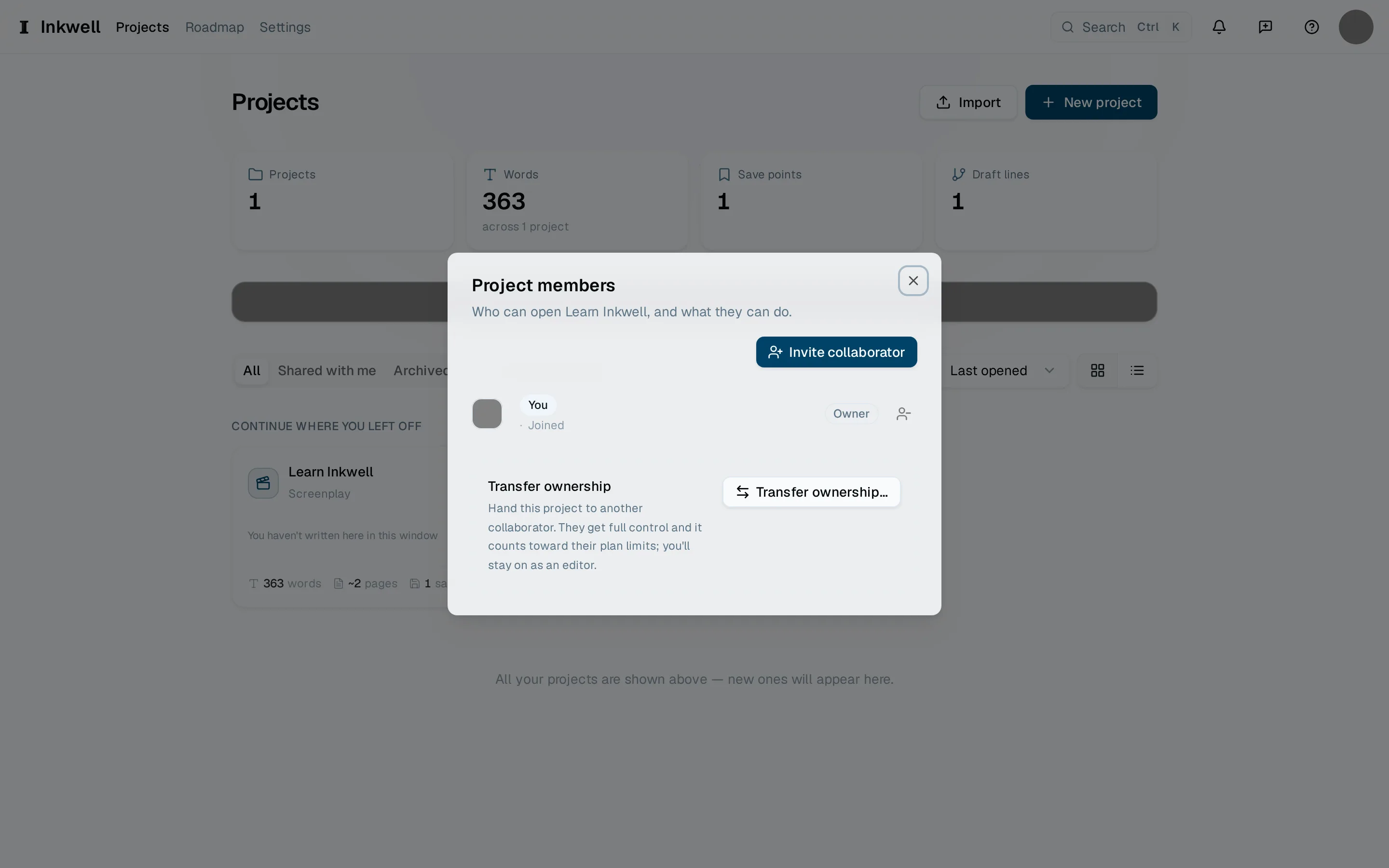
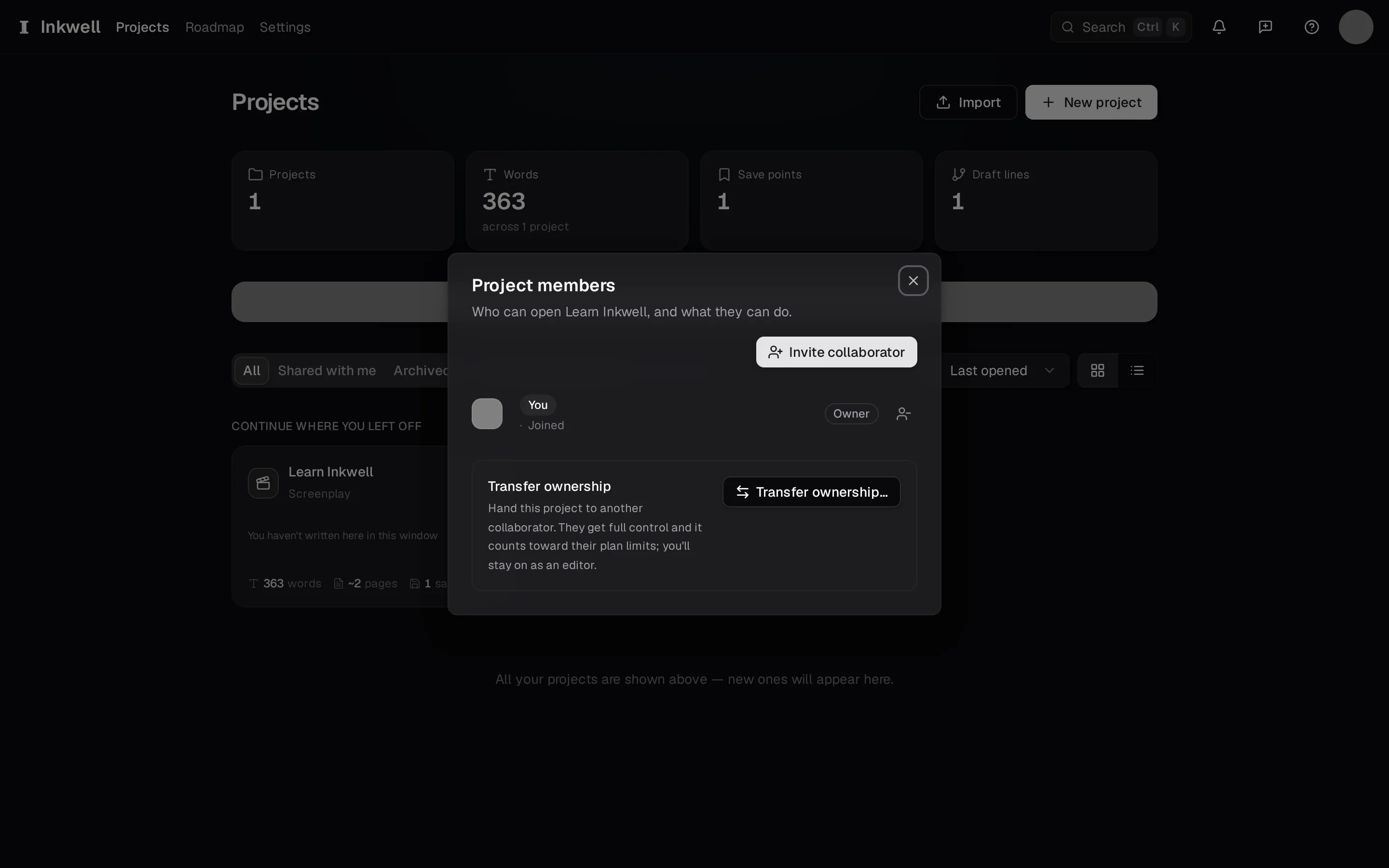
A project's Members dialog (1): who has access and with which role, and Invite collaborator (2) to add someone by email. Enter an email and pick a role
Choose Invite collaborator, enter the person's email, and pick the role. Editor can write, make save points, and run skills. Commenter can read and leave comments but not change the text. Viewer can only read. On a Team workspace, Admin can also manage members and billing, and the Owner is the account the workspace belongs to.
Send the invitation
Choose Send invitation. The person receives an email; the invitation also waits for them at their Invites page if they already have an account.
Accepting an invitation
If you are the one invited, open Invites from the header (or the link in the email) and choose Accept. The project appears on your projects page with the role you were given.
Change or remove someone later
From the same members list, change a role or remove a member. Their comments and save points stay with the project; only their access changes.
Start a Team workspace
A Team workspace keeps projects, members, seats, and shared billing under one organization. Open Settings → Organization and choose Create organization; from then on that page lists the members, the seats in use, and the activity log, and invitations to the workspace go out from there.
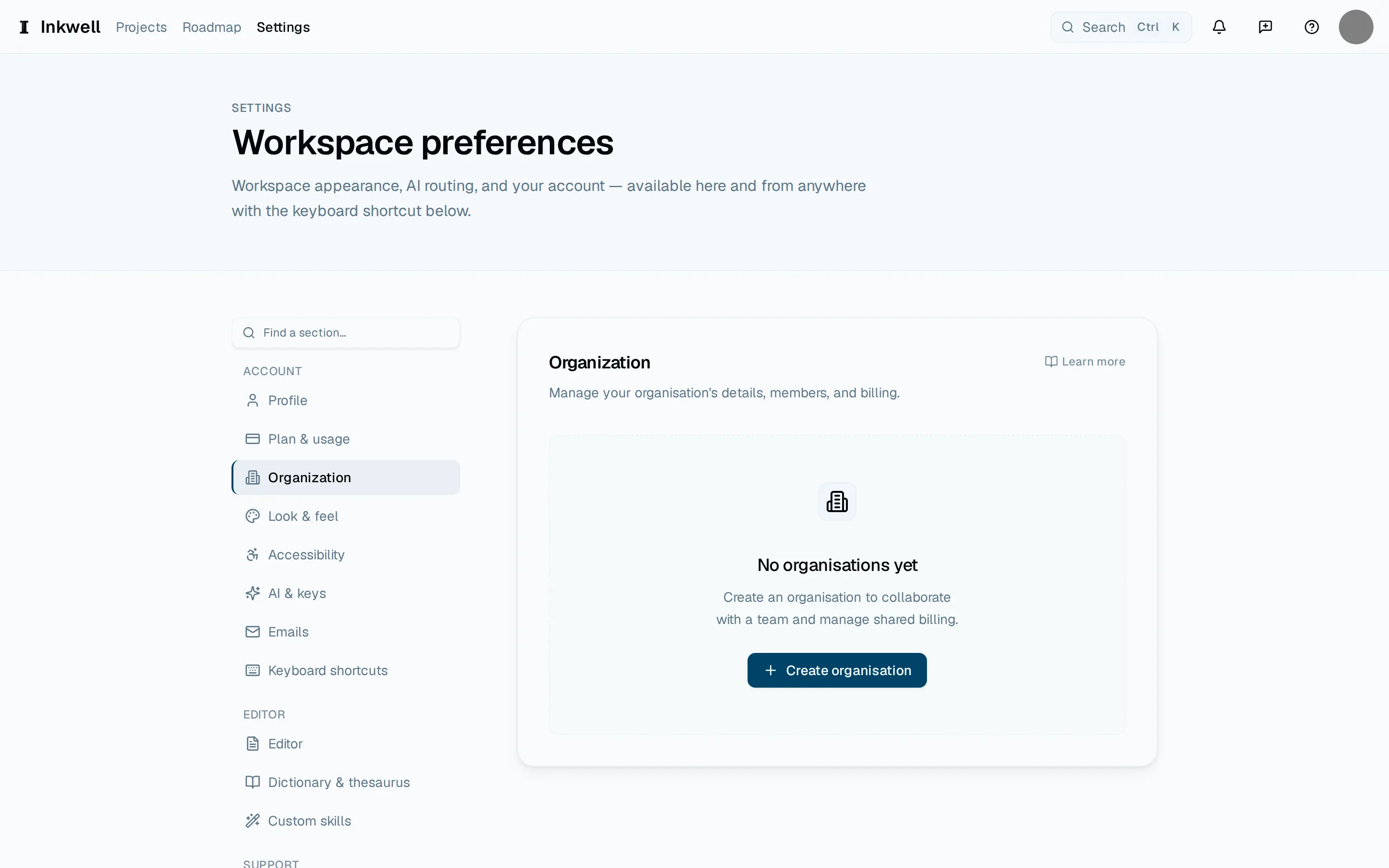
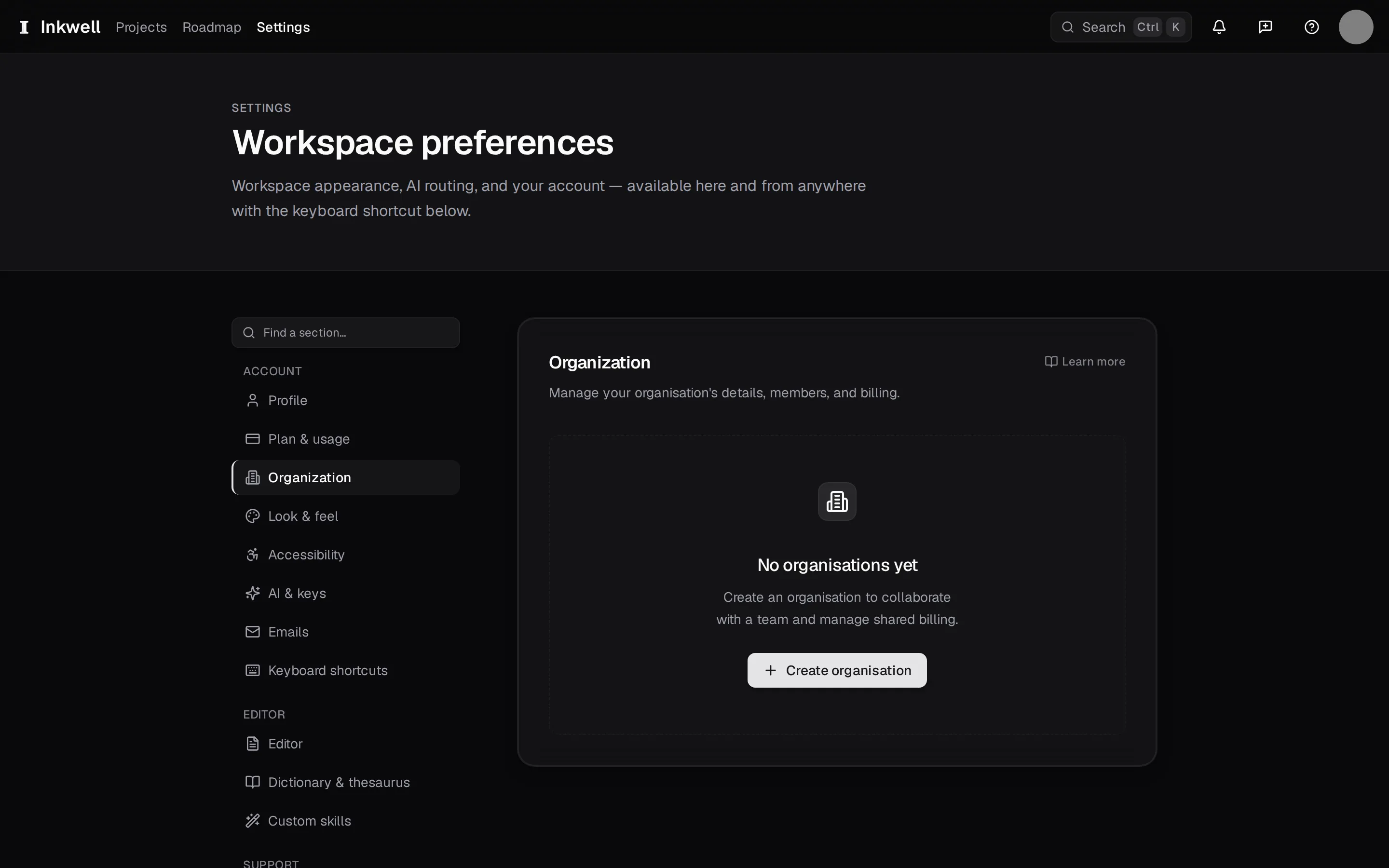
Settings → Organization before a workspace exists: the settings navigation (1) and Create organization (2), which starts a Team workspace.