
Skip to content

Undo a Change

Take back what you just typed, put a reviewed AI change back up for review, or return the whole draft to an earlier save point.

1 min readUpdated

How you undo depends on how far back you want to go: the last thing you typed, one change the AI made, or the whole draft as it stood earlier.

  1. Undo what you just did

    Press ⌘Z to take back your last edit, and press it again to keep going back. ⌘⇧Z puts it back. Replace all in Find undoes as one step.
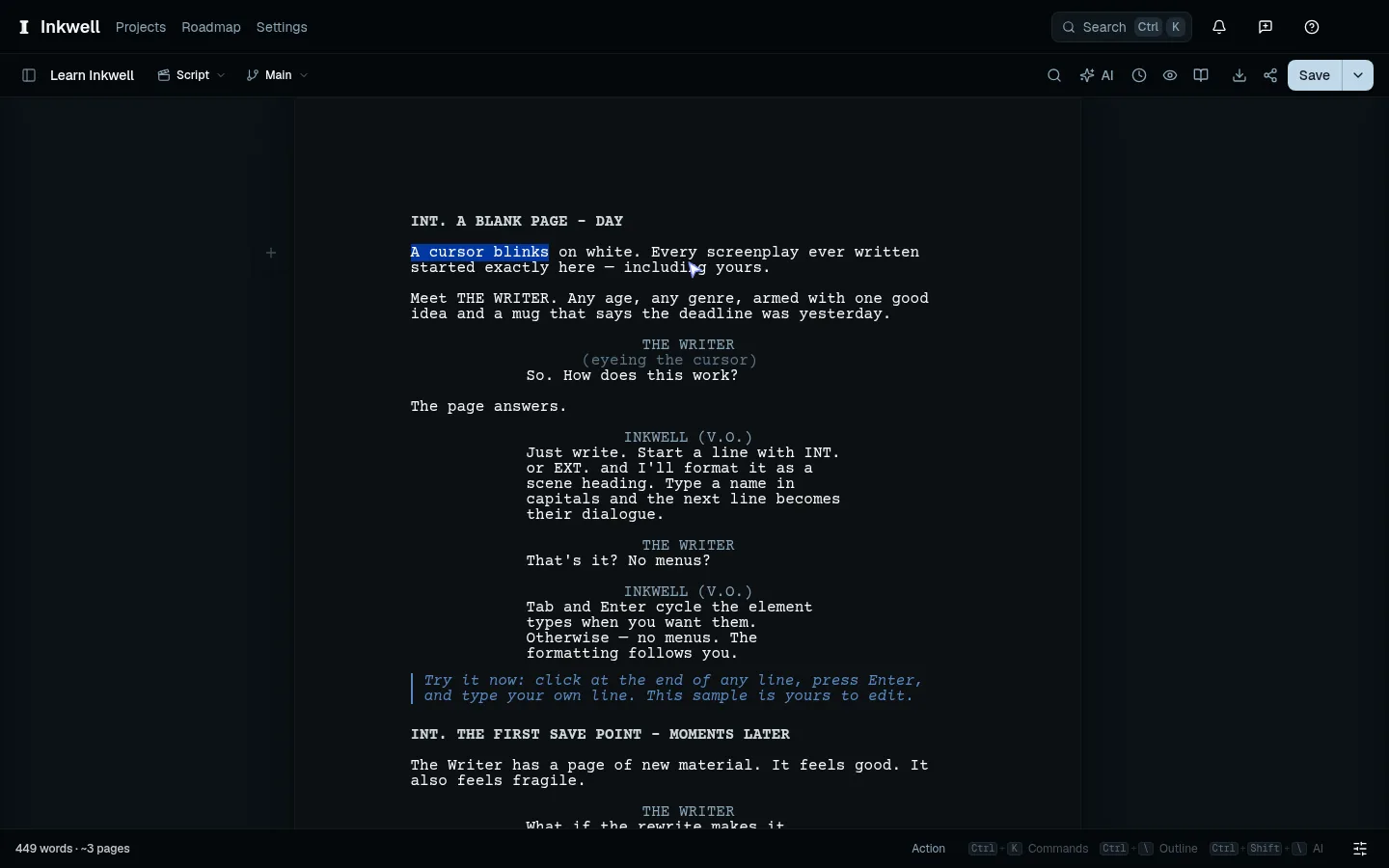
    An edit on the page, then Undo bringing back the words it replaced.
    An edit on the page, then Undo bringing back the words it replaced.
  2. Undo one AI change

    While you review changes from a skill or an Agent Mode run, each change you accept or reject keeps an Undo where it was. Choose it and the change goes back up for review, with its own Accept and Reject. Once the review closes, go back with Restore instead (next step). See Review a skill's changes.

  3. Go back to an earlier version

    Open the History tab in the right sidebar and select the save point from before the change. Read it, then choose Restore to make it the current draft. The draft you leave is kept as a save point first.
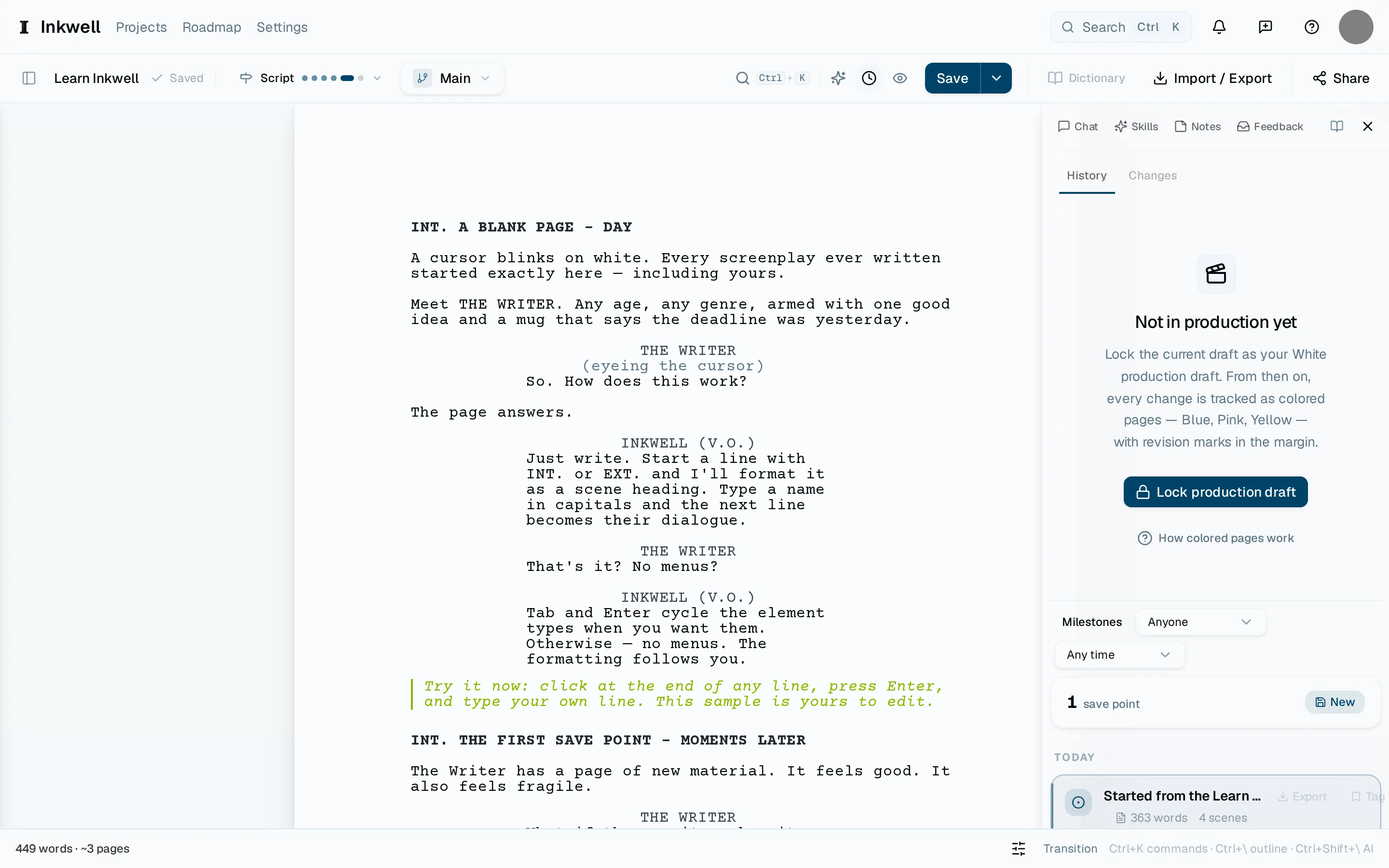
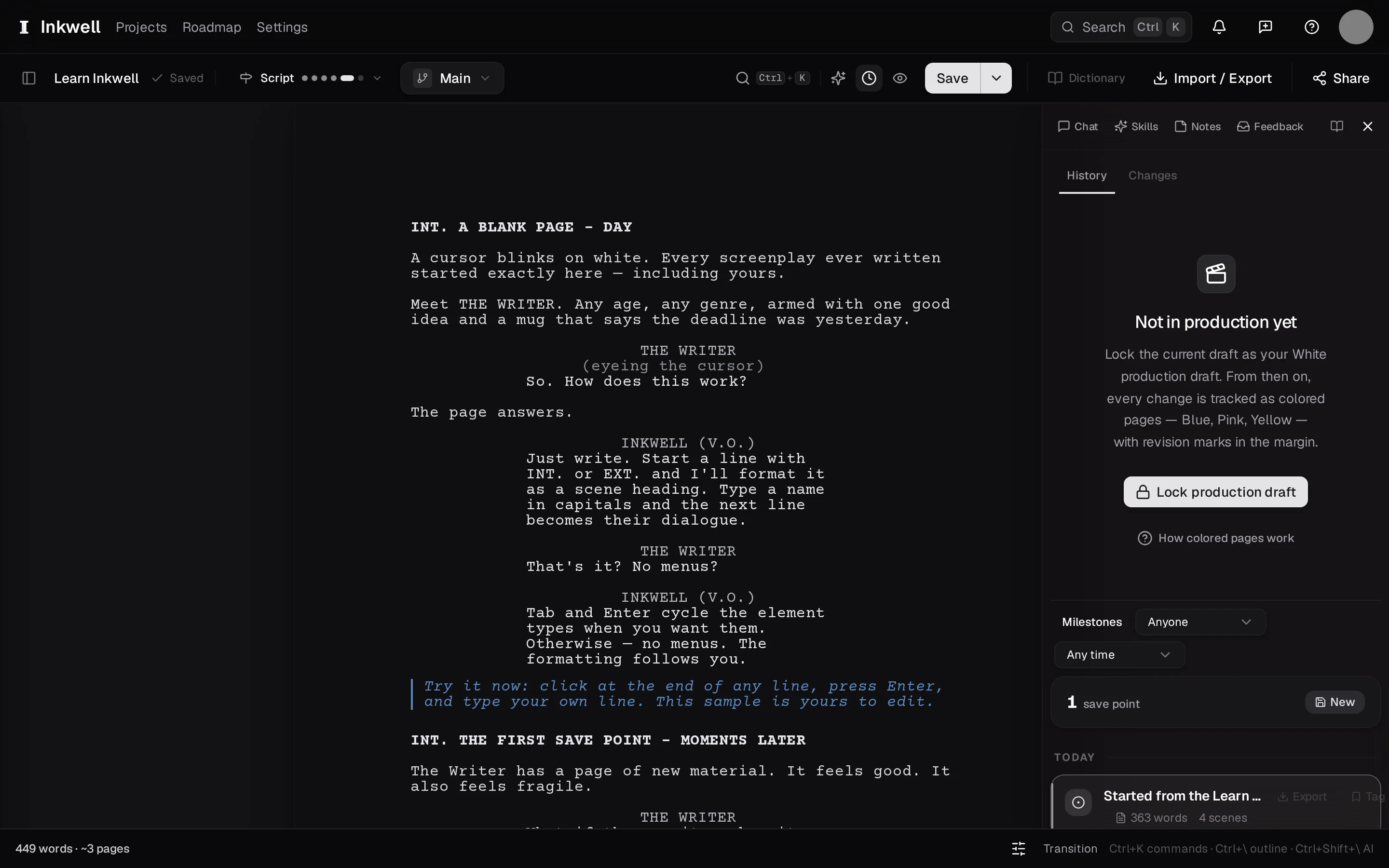
    The History tab: every save point in order, newest first (1). The draft-line switcher above the page (2) names the line whose history you are reading.
    The History tab: every save point in order, newest first (1). The draft-line switcher above the page (2) names the line whose history you are reading.

What next

  • Save Points

    What a save point is, how it differs from autosave, and what the History tab lets you do with one: read it, compare it, restore it.

    Concept · 2 min read

  • Review a Skill's Changes

    Work through a finished pass change by change, keep what earns its place, reopen a review you left, and see what a pass changed in History.

    How-to · 1 min read

  • Use Agent Mode for a Bigger Revision

    Hand the Dramaturg a goal that spans scenes, answer its questions when a choice is yours, and review what it changed on your page.

    How-to · 4 min read

What writers have asked about this — open the request to follow it.